Item Status (Resource Manager)
You can view information about any item, such as its site, status, condition, or home location. You can also print a replacement barcode label.
| Note: Users need the View resource item status permission. |
|
Important: If your district uses resource groups, you only have access to the resources in the group you are assigned. |
To find an item:
- Select Circulation > Item Status.
Note: This is one of a few ways to access Item Status. - In the Find Item field, enter the item's name or barcode.
- Click Go.
- Find the item you want, and then click the link.
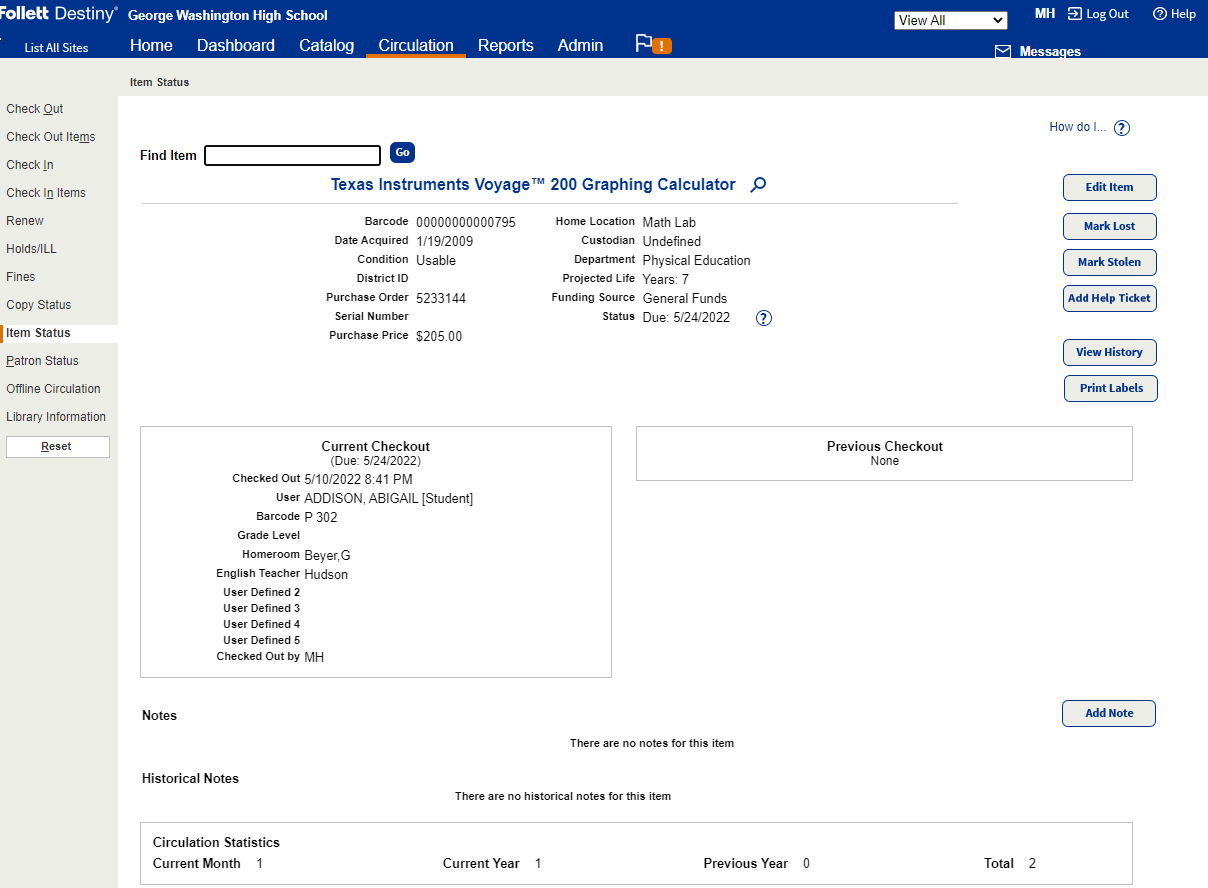
- Use the following table to complete your task:
If you want to… Then… Access resource details Click  next to the item name. See Resource Details.
Edit an item Click Edit Item. See Add/edit items and media. Include additional items Click Include Items. See Update included items. Mark an item as lost Click Mark Lost, and then click OK or Cancel. Mark an item as stolen Click Mark Stolen, and then click OK or Cancel. Create a new help ticket Click Add Help Ticket. See Create Help Tickets. View an item's history Click View History. See View Transaction History . Print labels Click Print Labels. See Print a label(s) for a single resource item . Access Components (if available) Click the Components Included link (  ).
).Add a note Click Add Note. See Use Notes .